How it works in 3 steps
- Choose a photo. Pick a picture from your device or take one right away with the camera.
- Adjust. Choose canvas size, portrait or landscape, number of colors, square or round drills and the drill size. Leave “Assign DMC Colors” switched on to get real drill numbers.
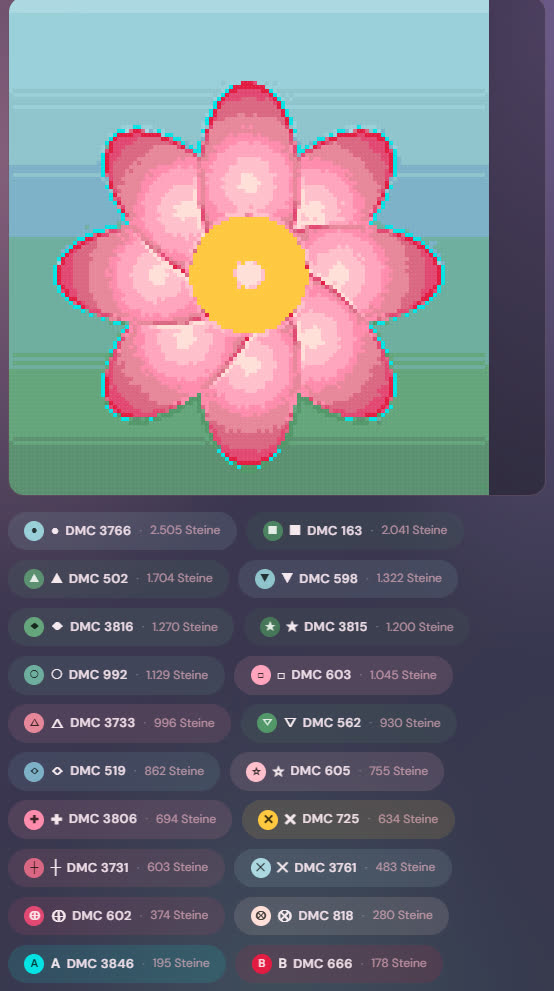
- Generate. Tap “Generate Pixel Art”. You see the pattern, can zoom in and out and tap a color to highlight only its cells. “PNG” saves the picture, “Print” puts the pattern and legend on paper.
The settings at a glance
| Setting | What it does |
|---|---|
| Canvas size | 15 sizes from 20 × 20 to 90 × 120 cm, portrait or landscape. Larger means more drills and more detail. |
| Number of colors | From 5 to 452. Few colors look flat, many colors look finely shaded. |
| Drill shape and size | Square or round, 1.5 to 3.0 mm. Common are square 2.5 mm and round 2.8 mm. |
| Assign DMC Colors | Every color gets the matching DMC number, just like store-bought kits. |
| Preview in real drill colors | Shows only colors that exist as drills. Similar photo tones are merged into one drill. |
| Contrast, brightness, sharpening | Helps with dark or dull photos. |
| Dithering | Smoother transitions, for example in sky or skin. |
| Symbols and grid lines | Symbols on the preview like on a real canvas, lines every 10 cells for counting. |
The total number of drills is shown right in the pattern. For a quick estimate without a photo, use the drill calculator.
Which photos work?
- Sharp and bright: blurry or dark photos turn into a muddy pattern.
- Clear motif: the motif should fill a large part of the picture, with a calm background.
- Faces and animals: better a larger canvas and more colors, otherwise eyes and fur get lost.
- Try it out: two or three runs with different numbers of colors quickly show what looks best.
Important: use your own photos or pictures you are allowed to use. Other people’s photos and characters from films are usually protected by copyright.
What you get – and what you do not
You get a pattern to view, save and print, with a color list, symbols and drill count. The app does not make a printed adhesive canvas – shops with custom kits do that. But the preview helps you plan size and number of colors beforehand, so you know what you are ordering.
Free, no sign-up, private
The tool is part of the Diamond Painting Manager and free for good: no subscription, no sign-up, no ads. It runs in the browser on PC, tablet and phone. Your photo is processed on your device and not uploaded.
Frequently asked questions
Can I turn my own photo into a diamond painting pattern for free?
Yes. In the Diamond Painting Manager you choose a photo, set canvas size, number of colors and drill shape, and get a pattern with DMC colors, symbols and drill count per color. It is free and needs no sign-up.
Is my photo uploaded?
No. The photo is processed right in your browser and is not sent to a server.
How many colors make sense?
Simple motifs often need only 15 to 25 colors, photos of people or animals rather 30 to 60. More colors mean smoother transitions, but also more bags of drills. Just try it and compare the previews.
Do I get a finished canvas?
No. You get a pattern to view, save and print, with a color list and drill count. Printed adhesive canvases are made by shops that offer custom kits. The preview helps you plan size and number of colors beforehand.
Which photos work best?
Sharp, bright photos with a clear motif and a calm background. The motif should fill a large part of the picture. For faces and animals, a larger canvas is worth it.